To make a Post Summary Correction (PSC) for your entry, follow the steps below:
Step 1: Open the Entry
•Open the entry in the system.
•Navigate to the Post Summary Correction screen.
Step 2: Enable PSC
•Check the box labeled “Post Summary Correction.”
•Select the appropriate reason code(s).
•Enter a clear explanation describing the correction.
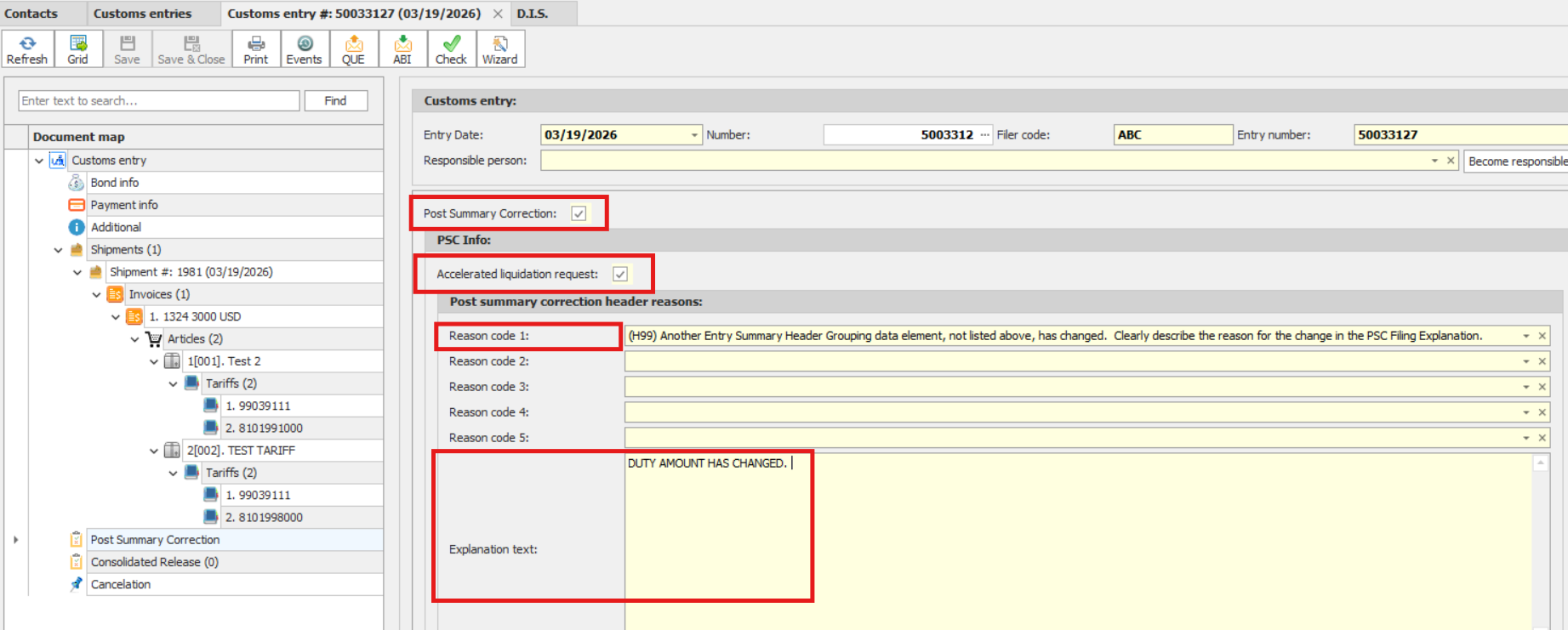
Step 3: Update Article Information
•Go to the Article Screen for the item you are correcting.
•Open the PSC tab.
•Select the reason code that reflects the change made for that specific item.
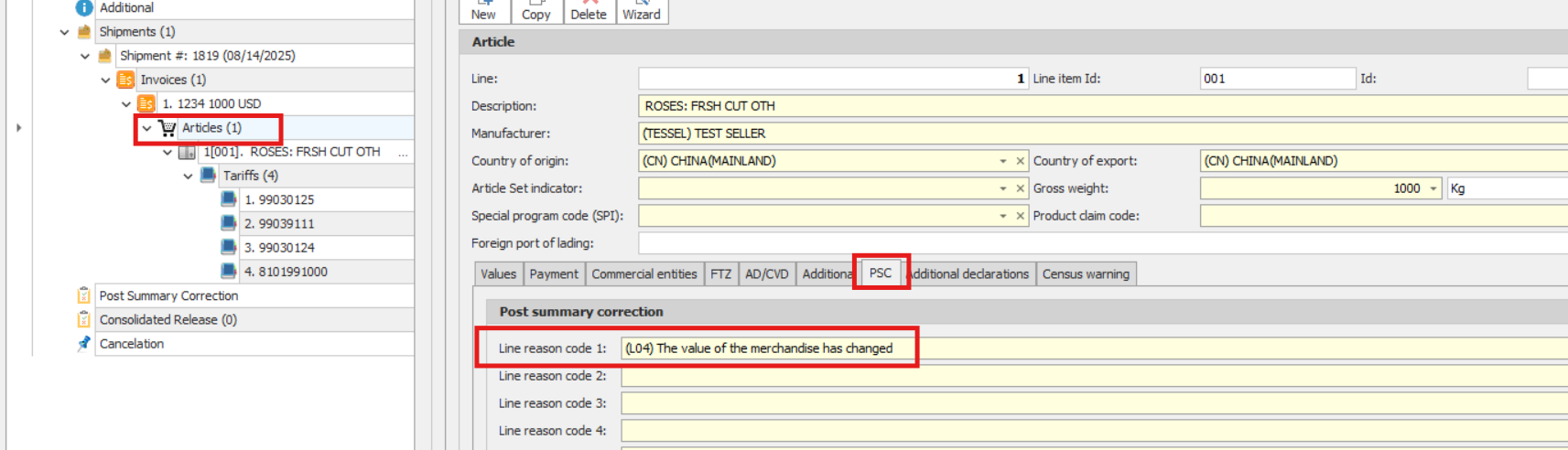
Step 4: Update Payment Information
•Navigate to the Payment Screen.
•Change the payment date to the next business day.
Step 5: Save and Submit
•Save all changes.
•QUE the Entry Summary Replace.
When is a PSC Required?
There are several scenarios where a PSC may or may not be required:
Scenario 1: Self-Identified Issue
•You identified an issue and need to correct the entry.
•✅ Action: Follow the PSC steps outlined above.
Scenario 2: CBP-Identified Issue
•U.S. Customs has identified an issue and notified you via ABI messages.
•The entry is placed in rejected status.
•❗ Action:
oA PSC is NOT required.
oCorrect the entry.
oQUE the Entry Summary Replace (already paid) - you will see this option available if you check in she box "Show all possible applications" at the QUE screen.